Your title tag and meta description are your first impression in search results. They're what searchers see before deciding whether to click on your result or scroll past. Yet many content creators publish without ever previewing how their pages will actually appear in Google.
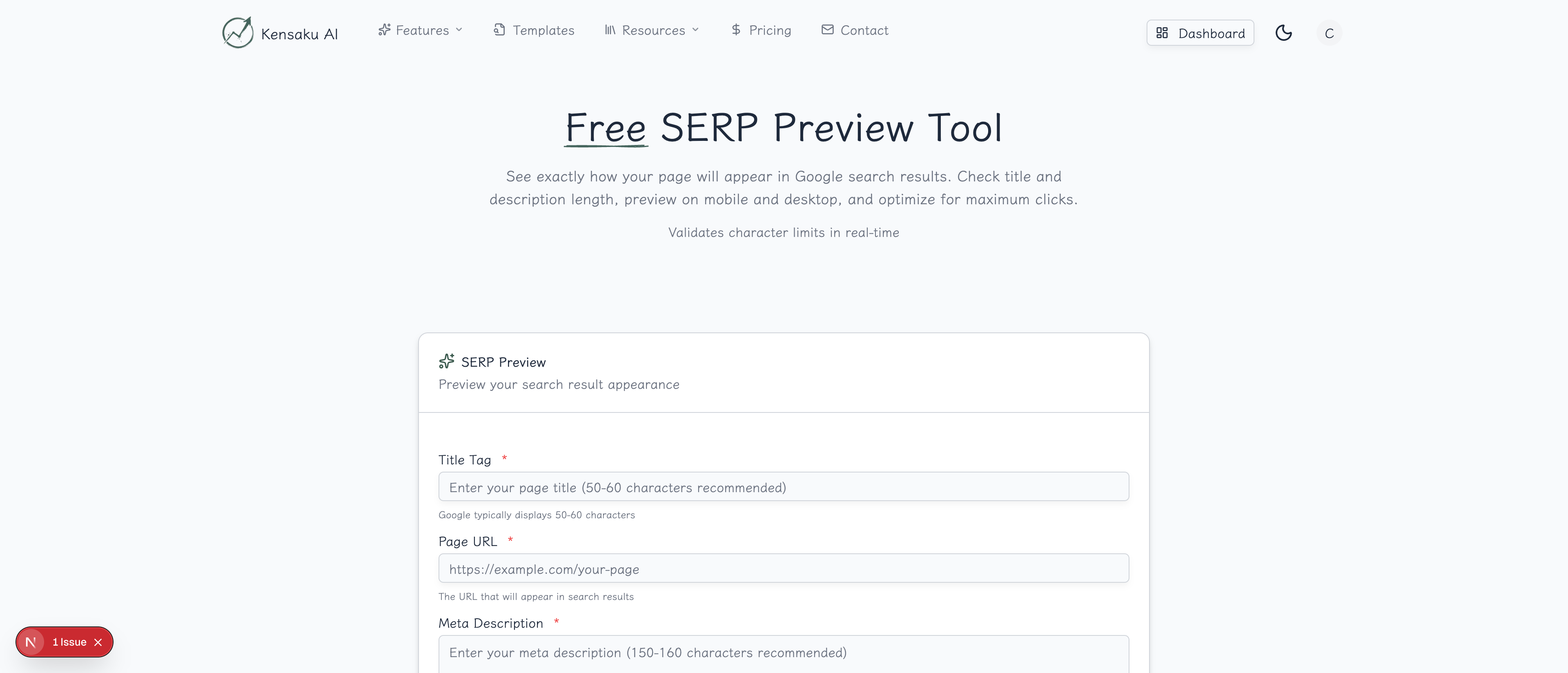
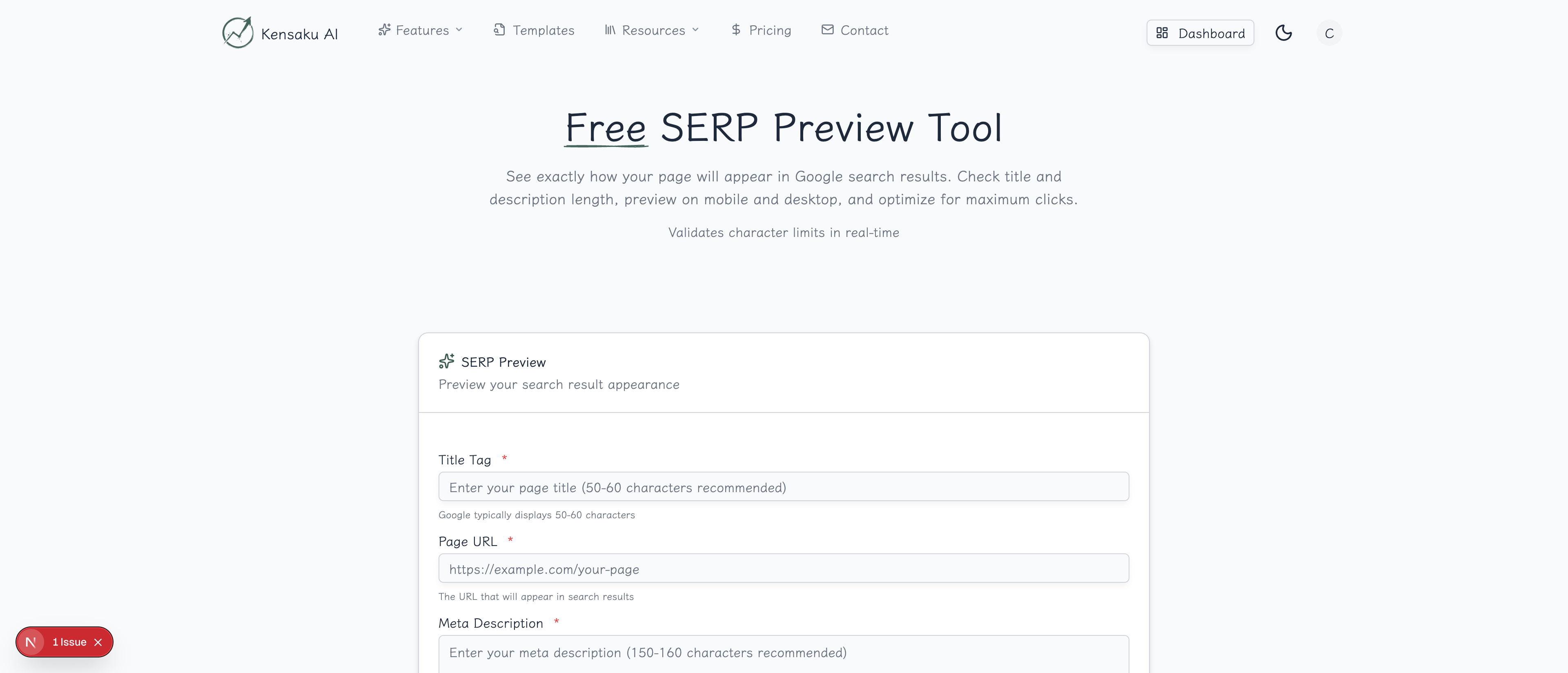
Our free SERP Preview Tool shows you exactly how your page will look in search results—on both desktop and mobile—before you publish.
What is a SERP Preview?
SERP stands for Search Engine Results Page. A SERP preview tool simulates how your page will appear when it shows up in Google search results, including:
- Your title tag (the clickable blue link)
- Your URL (displayed as a breadcrumb)
- Your meta description (the snippet below the title)
Why Preview Your Search Results?
Avoid Truncation
Google displays limited characters before cutting off your text:
| Element | Desktop | Mobile |
|---|---|---|
| Title Tag | ~60 characters | ~55 characters |
| Meta Description | ~160 characters | ~120 characters |
If your title or description is too long, Google truncates it with an ellipsis (...). This can cut off your most important messaging or call-to-action.
Optimize for Clicks
Rankings don't matter if nobody clicks. A well-crafted search result can dramatically improve your click-through rate (CTR):
- Position 1 with poor snippet: 15% CTR
- Position 3 with optimized snippet: 18% CTR
The difference compounds across thousands of impressions.
Check Keyword Highlighting
When your title or description contains the searcher's query, Google bolds those words. This visual emphasis draws the eye and signals relevance. Preview with your target keyword to see how bolding will appear.
Validate Mobile Appearance
Over 60% of searches happen on mobile. What looks perfect on desktop may get truncated on mobile. Always check both.
How the Tool Works
Step 1: Enter Your Title Tag
Type your page title exactly as it appears in your <title> tag. Watch the character count—aim for 50-60 characters to avoid truncation.
Tips for great titles:
- Front-load important keywords
- Include your brand name (if space allows)
- Use separators like | or - for readability
- Create curiosity or urgency
Step 2: Add Your URL
Enter the full URL of your page. The tool converts it to Google's breadcrumb format:
https://example.com/blog/seo-guide becomes example.com › blog › seo-guide
Clean, readable URLs improve trust and click-through rates.
Step 3: Write Your Description
Enter your meta description. Keep it under 160 characters for desktop, 120 for mobile. The tool shows a real-time character count and warns when you're too long.
Effective description formula:
- Hook with value proposition
- Include target keyword naturally
- End with a call-to-action
Step 4: Add Target Keyword (Optional)
Enter your primary keyword to see how Google will bold matching terms in your result. This helps you optimize keyword placement.
Step 5: Select Device Preview
Choose to preview:
- Desktop: Full-width search result
- Mobile: Condensed mobile view
- Both: Side-by-side comparison
Step 6: Generate and Iterate
Click "Generate Preview" and review the results. Make adjustments and regenerate until your result is click-worthy.
Character Limit Best Practices
Title Tags
| Length | Verdict |
|---|---|
| Under 50 | May be too short—use more space |
| 50-60 | Optimal range |
| 60-70 | Risk of truncation on some devices |
| Over 70 | Will definitely be truncated |
Meta Descriptions
| Length | Verdict |
|---|---|
| Under 120 | Safe for mobile |
| 120-155 | Safe for desktop, may truncate on mobile |
| 155-160 | Optimal for desktop |
| Over 160 | Will be truncated |
Pixel Width vs Characters
Google actually measures by pixel width, not characters. Wide characters (W, M) take more space than narrow ones (i, l). The character guidelines account for average widths, but preview to be sure.
Common Truncation Mistakes
Putting Key Info at the End
Bad: "Everything You Need to Know About the Best Practices for..." Good: "SEO Best Practices: Complete Guide for Beginners"
If truncated, the "bad" example loses all meaning.
Using All Caps
ALL CAPS USES MORE PIXELS. Titles in all caps get truncated sooner than mixed case.
Ignoring Mobile
A 60-character title might be fine on desktop but truncated on mobile. Always preview both.
Optimization Strategies
A/B Test Your Titles
Create 2-3 title variations and preview each:
- Feature-focused: "AI Keyword Research Tool - 500+ Ideas Free"
- Benefit-focused: "Get 500+ Keyword Ideas in Seconds - Free Tool"
- Question-based: "Need Keyword Ideas? Generate 500+ Free"
Choose the one that's most compelling and fits within limits.
Use Power Words
Words that drive clicks:
- Free, Ultimate, Complete, Essential
- New, Updated, [Year]
- Easy, Simple, Quick
- Proven, Guaranteed, Powerful
Include Numbers
Specific numbers catch the eye:
- "10,000+ Pages"
- "5-Minute Setup"
- "340% Traffic Increase"
Create Urgency (When Appropriate)
- "Limited Time"
- "Updated for 2025"
- "Before It's Too Late"
Programmatic SEO Considerations
Template-Based Titles
When creating thousands of pages with programmatic SEO, design title templates carefully:
Template: "[Product] in [City] - Compare Prices | [Brand]"
Character check: 25 + variable + 20 = 45-60 characters

Examples:
- "Plumbers in Austin - Compare Prices | HomeAdvisor" (47 chars) ✓
- "Air Conditioning Repair in San Francisco - Compare Prices | HomeAdvisor" (71 chars) ✗
Test your templates with the longest possible variables.
Dynamic Descriptions
For programmatic pages, create description templates with safe character budgets:
Template: "Find the best [service] in [location]. Compare [X]+ providers, read reviews, and get quotes. Free and instant."

Variable budget: service (20 chars) + location (20 chars) = 40 chars
Fixed content: ~90 chars
Total: ~130 chars (mobile-safe)
Bulk Preview Workflow
- Export your title/description dataset
- Identify longest variations
- Test longest variations in preview tool
- Adjust templates if any truncate
- Regenerate and republish
Integration with Other Tools
Build a complete metadata workflow:
- Meta Description Generator → Create compelling descriptions
- Title Tag Generator → Craft optimized titles
- SERP Preview → Validate appearance
- Schema Generator → Add rich snippet markup
Measuring Search Appearance Impact
Use Search Console
Google Search Console shows:
- Average CTR by page
- CTR changes over time
- Which queries trigger your result
Track Changes
When you update titles/descriptions:
- Note the date of change
- Monitor CTR in Search Console
- Allow 2-4 weeks for data
- Compare before/after CTR
Calculate ROI
If changing a title increases CTR from 3% to 4%:
- 10,000 monthly impressions
- Before: 300 clicks
- After: 400 clicks
- Result: +100 clicks/month from one title change
Common Questions
Will Google Use My Exact Title?
Not always. Google may rewrite titles if:
- They're too long
- They don't match search intent
- They're keyword-stuffed
- They're duplicated across pages
Write for users first, and Google is more likely to use your title.
Does Meta Description Affect Rankings?
Meta descriptions are not a direct ranking factor. However, a compelling description increases CTR, which can indirectly influence rankings.
How Often Should I Update Titles?
Update when:
- CTR is significantly below average
- Content has been substantially updated
- You're targeting different keywords
- Seasonal opportunities arise
Get Started
Ready to see how your pages appear in search results? Try our free SERP Preview Tool now.
For teams managing thousands of pages, explore our full platform with bulk title/description generation and programmatic SEO capabilities.