
Article Editor Guide
Learn how to use the Kensaku AI article editor - a rich text editor for editing AI-generated content with embedded images, Google Maps, and advanced formatting.
Overview
The Article Editor is a powerful rich text editor that allows you to view, edit, and refine your AI-generated content. It supports embedded images, Google Maps, tables, and advanced formatting options.
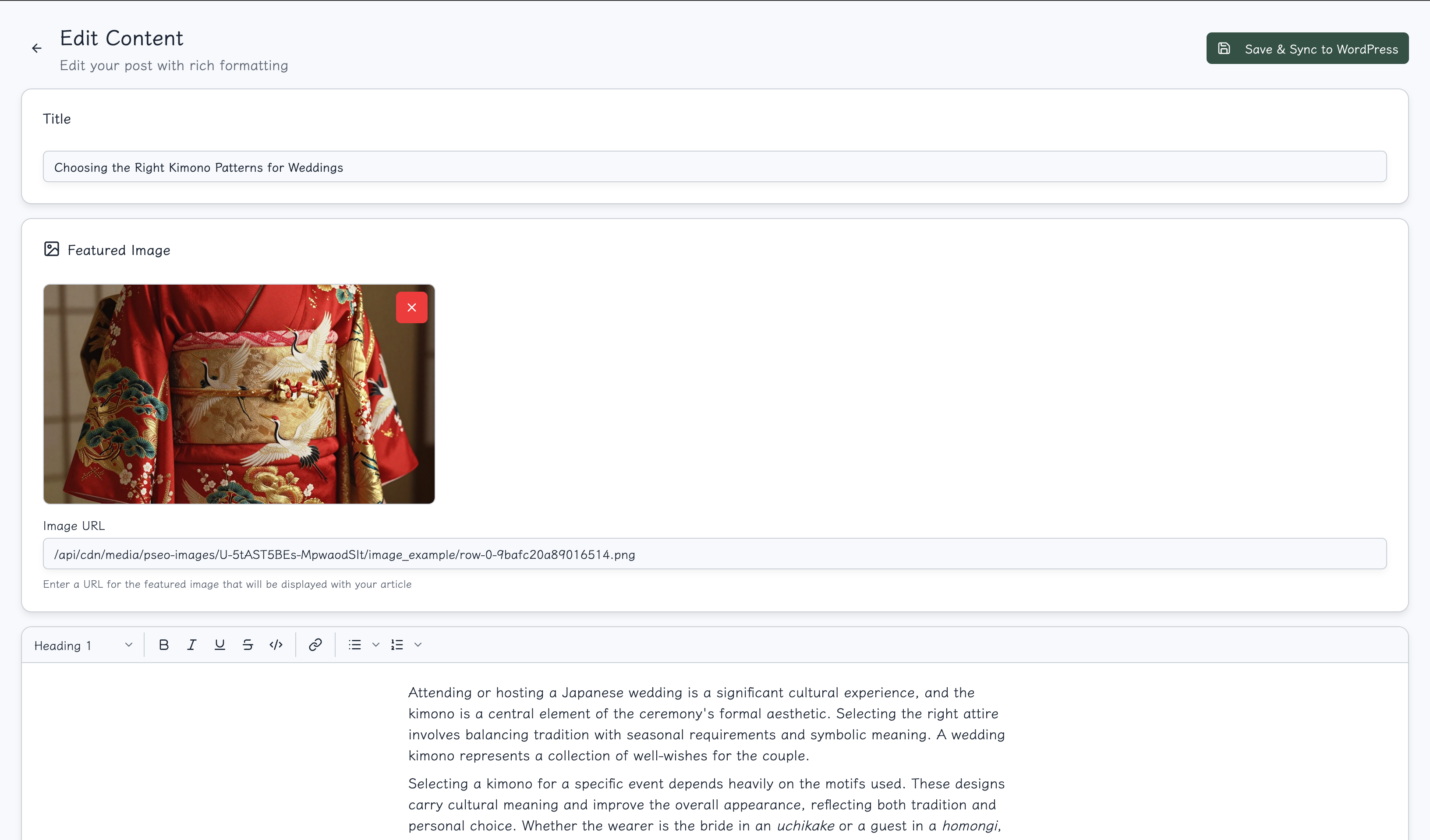
Accessing the Editor
You can access the Article Editor from:
- Content History - Click "Edit" on any article
- PSEO Project Output - Click on generated articles
- Direct URL -
/user/history/[id]/edit
Featured Image
At the top of the editor, you can set a featured image for your article:
Setting Featured Image
- Enter the image URL in the "Featured Image" field at the top
- The image will be used as the article thumbnail
- WordPress will use this as the post featured image
Featured Image Best Practices
- Use high-quality images (minimum 1200x630px)
- Ensure the URL is publicly accessible
- Use images from your PSEO project's generated images
Saving Your Work
The Save button is located at the top right of the editor:
Save Options
- Save - Save changes without publishing
- Save & Publish - Save and sync to WordPress (if connected)
For WordPress Publications
When editing a published WordPress post:
- Changes are saved locally first
- Content syncs to your WordPress site
- Post is updated on the live site
For Draft Articles
When editing draft content:
- Changes are saved to the database
- Article remains in draft status
- Publish later from Content History
Editor Interface
Content Section & Toolbar
Below the featured image is the Content section with the formatting toolbar:
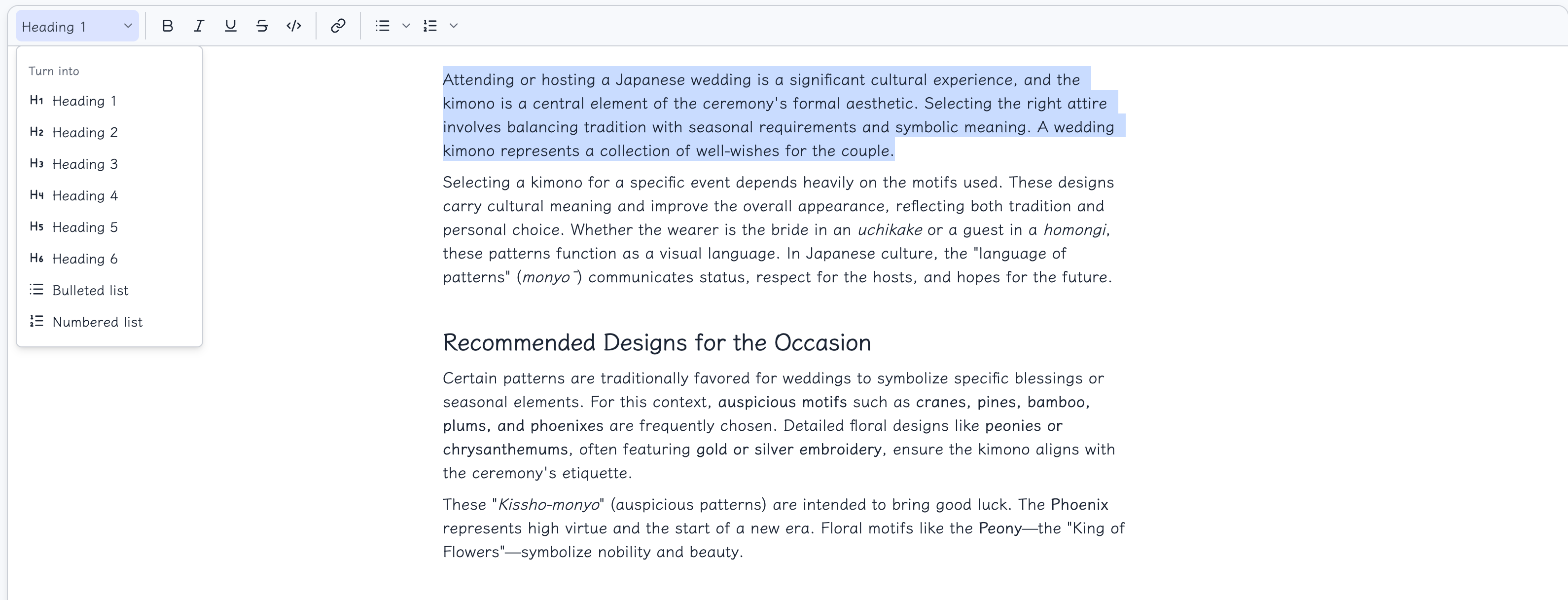
- Text Type Selector - Convert block type (paragraph, heading, quote)
- Formatting Toolbar - Quick access to text formatting
- Content Area - Where you edit your article
Available Formatting Options
| Tool | Function | Shortcut |
|---|---|---|
| Turn Into | Convert block type (paragraph, heading, quote) | - |
| Bold | Make text bold | Cmd+B |
| Italic | Make text italic | Cmd+I |
| Underline | Underline text | Cmd+U |
| Strikethrough | Strike through text | Cmd+Shift+M |
| Code | Inline code formatting | Cmd+E |
| Link | Add hyperlink | Cmd+K |
| Bulleted List | Create bullet points | - |
| Numbered List | Create numbered list | - |
Advanced Features
The editor supports additional features through the slash command menu (type /):
- Headings - H1, H2, H3 headings
- Blockquotes - Styled quote blocks
- Code Blocks - Syntax-highlighted code
- Tables - Data tables
- Callouts - Highlighted information boxes
- Columns - Multi-column layouts
- Math - LaTeX math equations
- Table of Contents - Auto-generated TOC
- Toggles - Collapsible sections
Content Area
The main editing area displays your article content:
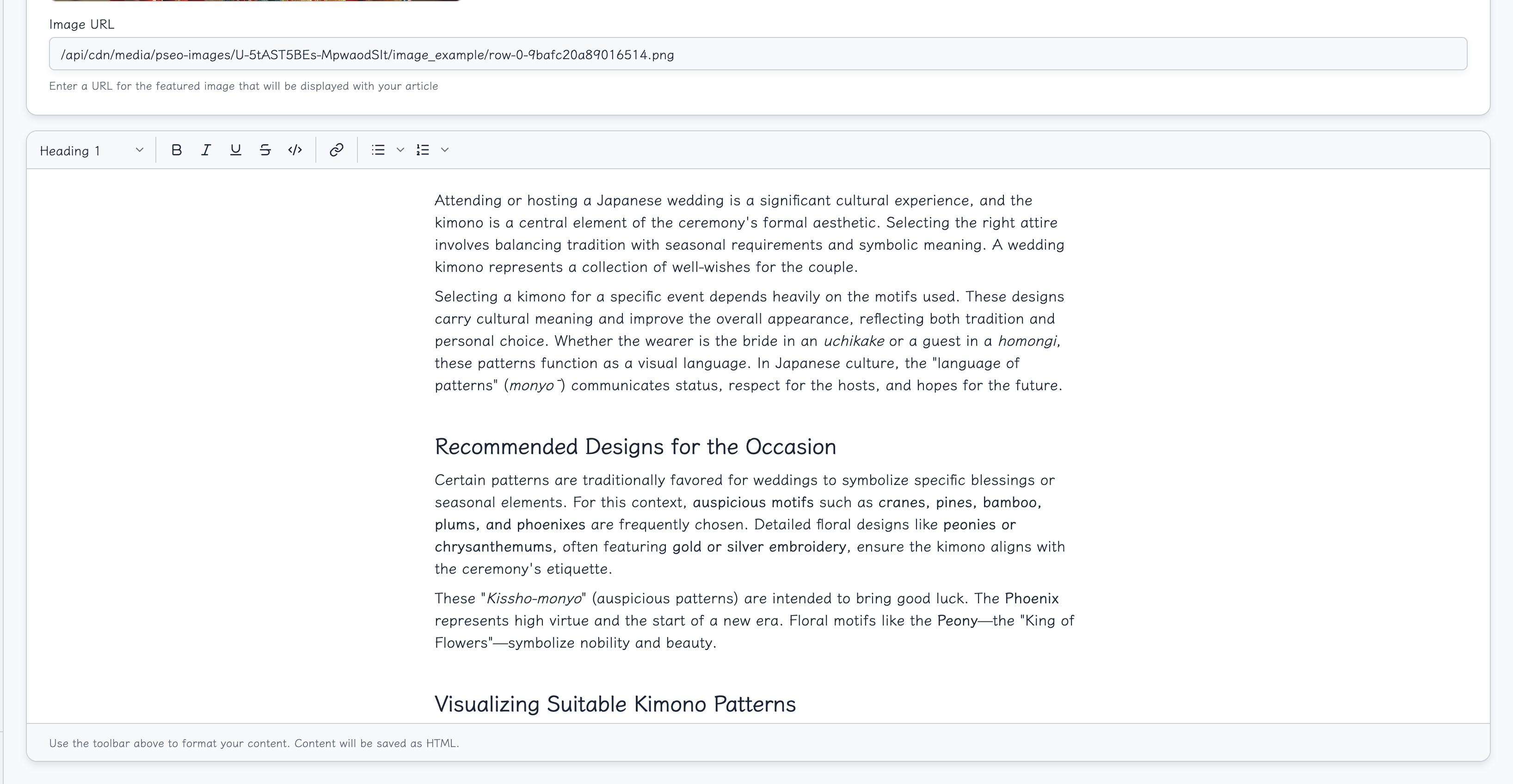
Text Content
Edit text directly in the editor:
- Click anywhere to position cursor
- Select text to format
- Use toolbar or keyboard shortcuts
- Drag blocks to reorder
Structured Content from PSEO
When editing articles generated from PSEO projects, the content follows your template structure:
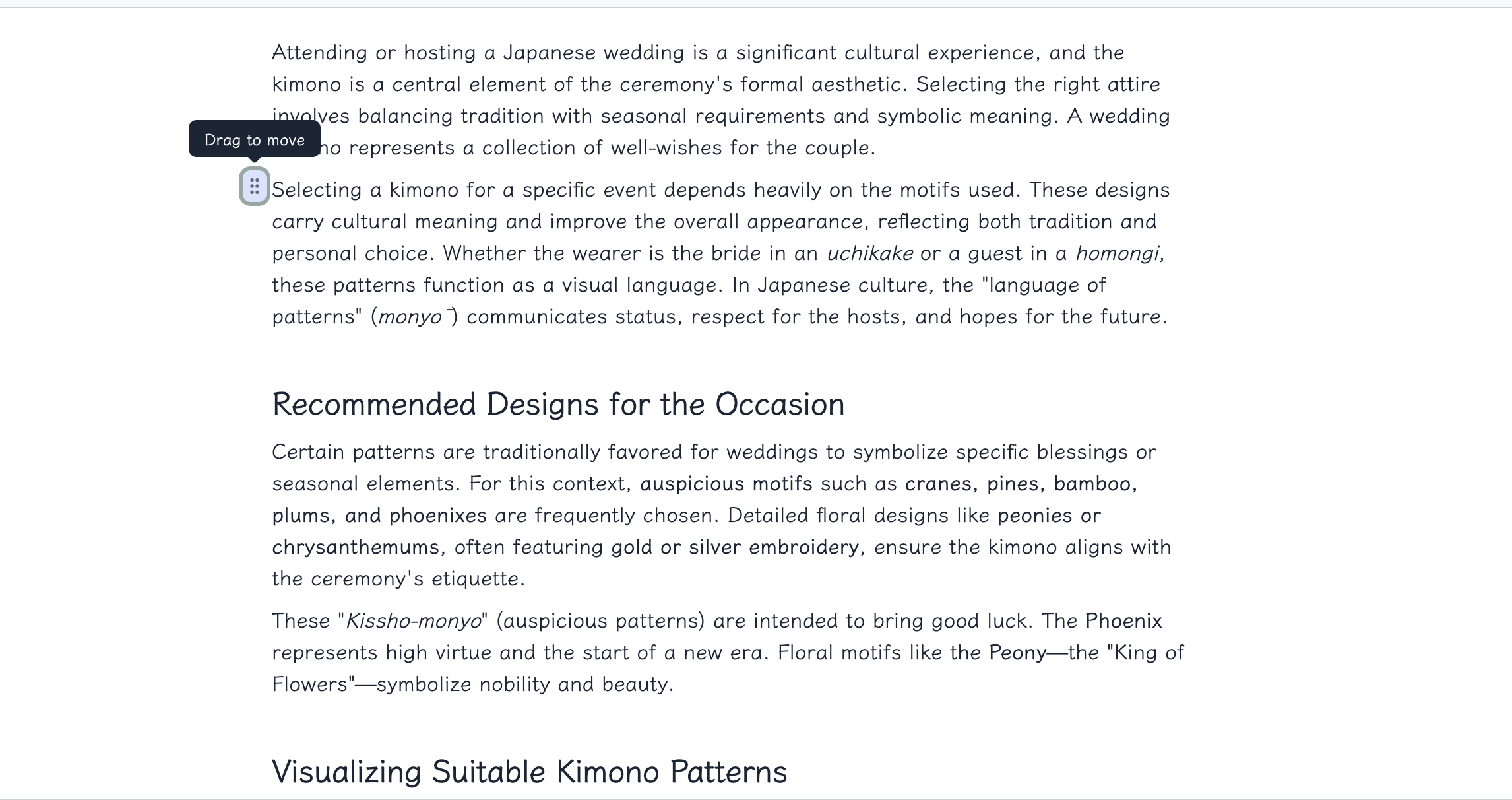
The content typically includes:
- Headings - Section headers from your template
- Paragraphs - AI-generated text based on your data
- Data Fields - Information pulled from your dataset
Content Details
As you scroll through the article, you'll see different sections of your generated content:
Embedded Images
One of the most powerful features is automatic image embedding from your PSEO data.
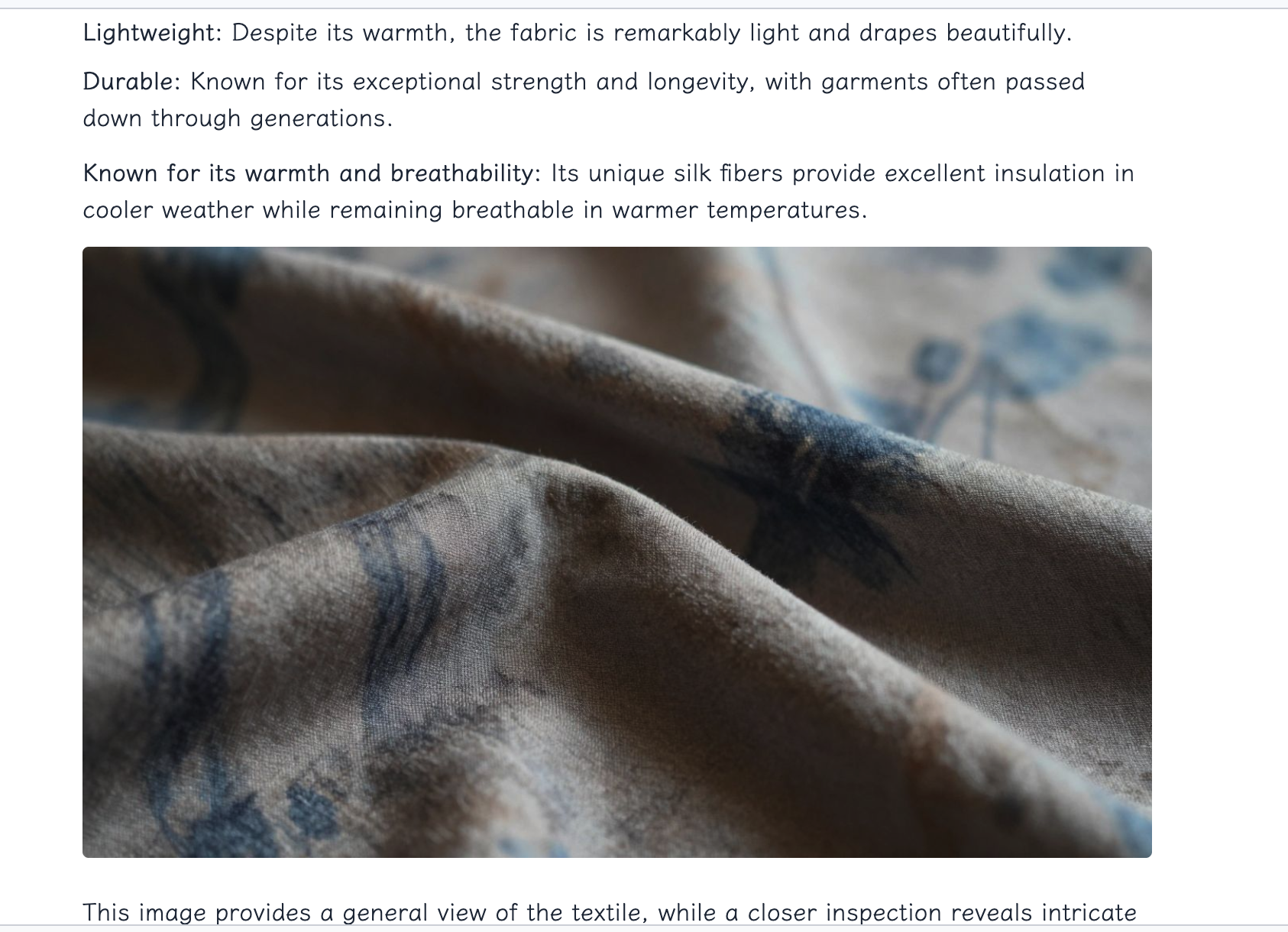
How Image Embeds Work
When you define image type columns in your PSEO project, the generated articles automatically include:
- AI-Generated Images - Created from your image prompts
- Alt Text - Automatically generated for SEO
- Responsive Sizing - Images adapt to content width
Image Types from PSEO
Common image column types in PSEO projects:
| Column Type | Purpose | Example |
|---|---|---|
image_url | Main product/topic image | Hero image |
worn_image | Product in use | Model wearing item |
zoom_image | Detail/close-up shot | Texture details |
Google Maps Integration
Articles can include embedded Google Maps for location-based content.
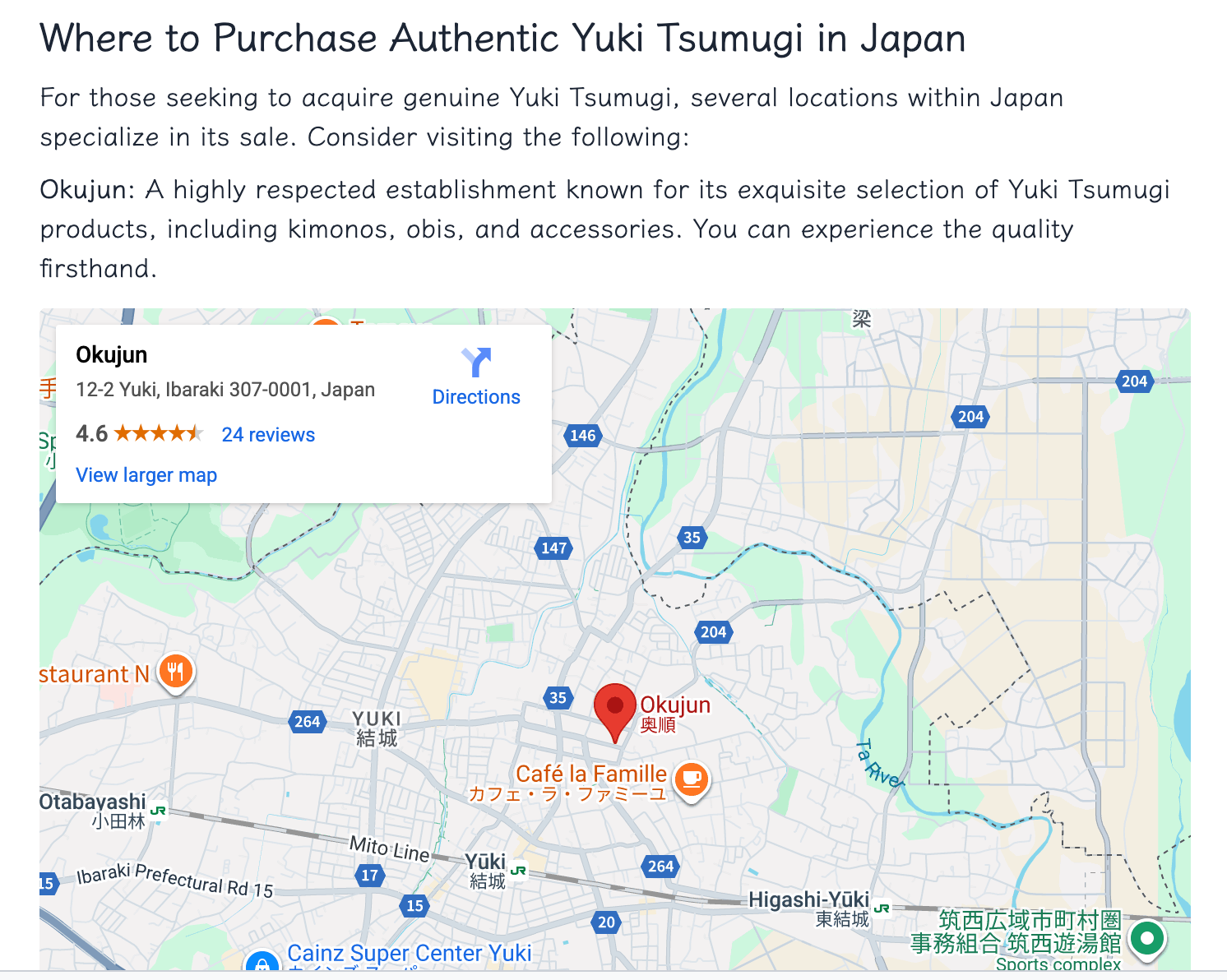
How Map Embeds Work
When you define location type columns in your PSEO project:
- Place Search - AI finds relevant locations via Google Places API
- Map Generation - Interactive map embed is created
- Business Info - Place name and details are included
Map Features
Each embedded map includes:
- Interactive Map - Users can zoom, pan, and explore
- Place Marker - Exact location pinned
- Business Name - Displayed above or below the map
- Directions Link - Users can get directions
Use Cases for Map Embeds
Maps are ideal for:
- Local Business Pages - "Best [service] in [city]"
- Travel Content - "Top attractions in [destination]"
- Store Locators - "Where to buy [product]"
- Event Venues - Location-based event pages
Working with PSEO Content
Understanding Template Variables
PSEO-generated content uses your data columns as variables:
## About {{textile_type}}

{{history_summary}}

### Origin
{{origin_region}}

### Characteristics
{{key_characteristics}}
Internal Link Resolution
The editor automatically resolves internal links:
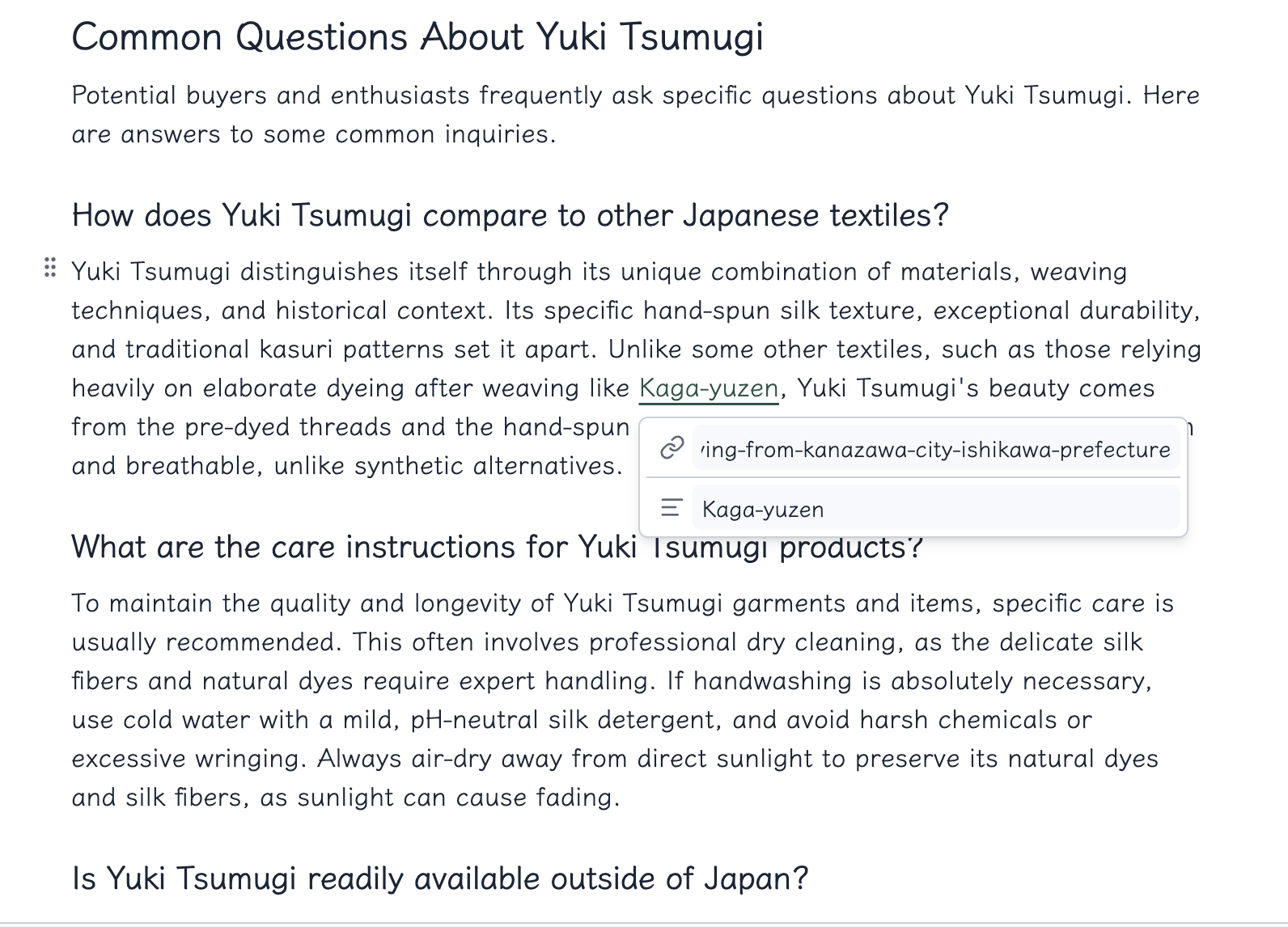
- Links to other articles in your PSEO project
- URLs generated based on your slug patterns
- Broken links are highlighted for review
Editing Generated Content
Best practices for editing AI-generated articles:
- Review for Accuracy - Verify facts and data
- Add Personal Touch - Include unique insights
- Check Links - Ensure all internal links work
- Optimize Images - Verify alt text is appropriate
- Verify Maps - Confirm location accuracy
Keyboard Shortcuts
| Shortcut | Action |
|---|---|
| Cmd+B | Bold |
| Cmd+I | Italic |
| Cmd+U | Underline |
| Cmd+E | Inline code |
| Cmd+K | Insert link |
| Cmd+Z | Undo |
| Cmd+Shift+Z | Redo |
| Cmd+S | Save |
| / | Open slash command menu |
Troubleshooting
Images Not Loading
- Check if the image URL is valid
- Ensure images are publicly accessible
- Verify CDN/media server is running
Maps Not Displaying
- Google Maps API may need configuration
- Check if place ID is valid
- Verify map embed permissions
Content Not Saving
- Check network connection
- Ensure you have edit permissions
- Try refreshing and re-editing
Formatting Lost
- Some HTML may not be supported
- Use supported formatting options
- Check for invalid markup in source
Ready to Scale Your Content?
100+ pages in 1 click with Kensaku AI. Start your programmatic SEO campaign today.