
Content Calendar Guide
Learn how to use the Kensaku AI content calendar to schedule and manage your WordPress publishing timeline across multiple sites.
Overview
The Content Calendar helps you plan and schedule your content publishing across connected WordPress sites. Visualize your publishing schedule and manage post timing.
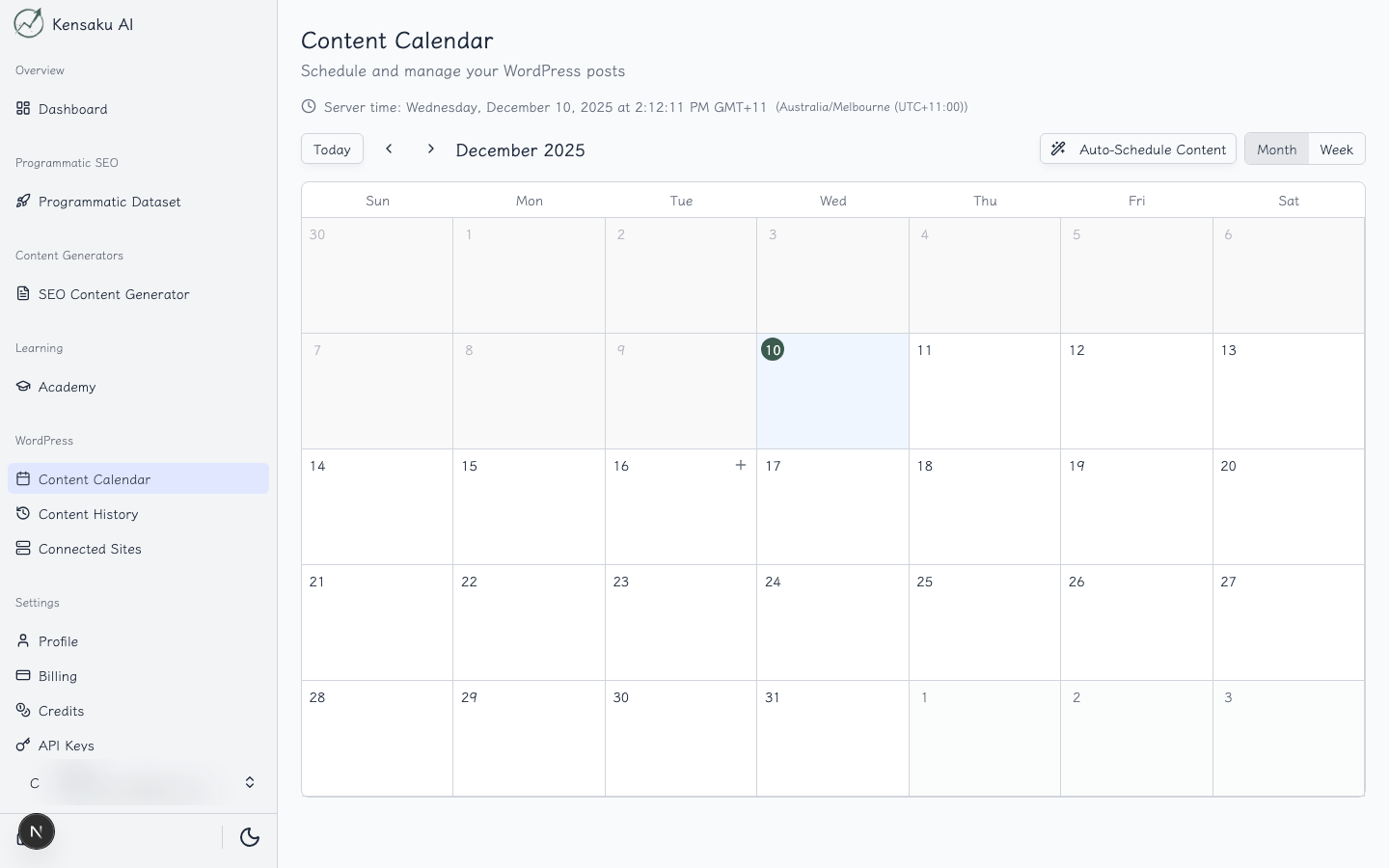
Calendar View
The calendar provides a monthly view of your scheduled content:
- Daily View: See posts scheduled for each day
- Post Cards: Visual indicators for scheduled content
- Drag & Drop: Easily reschedule by dragging posts
- Multi-Site: View schedules across all connected sites
Scheduling Content
From Content History
- Navigate to Content History
- Select a draft article
- Choose "Schedule" from actions
- Select date and time
- Confirm the schedule
From the Calendar
- Click on a calendar day
- Select "New Scheduled Post"
- Choose content from your drafts
- Set the publication time
- Save the schedule
Managing Scheduled Posts
View Details
Click on any scheduled post to see:
- Post title and excerpt
- Target WordPress site
- Scheduled publication time
- Associated PSEO project
Reschedule
Drag and drop posts to new dates, or:
- Click on the scheduled post
- Select "Edit Schedule"
- Choose new date/time
- Save changes
Cancel Schedule
To remove a scheduled publication:
- Click on the scheduled post
- Select "Cancel Schedule"
- The post returns to draft status
Site Selection
If you have multiple WordPress sites connected:
- Use the site filter to view specific site schedules
- Color-coded posts indicate different sites
- Manage publishing across all sites from one view
Best Practices
Content Planning
- Consistent Schedule: Maintain regular publishing intervals
- Peak Times: Schedule for your audience's active hours
- Content Mix: Balance different content types
- Buffer Time: Leave gaps for time-sensitive posts
Managing Multiple Sites
- Use different colors for each site
- Review site-specific calendars separately
- Avoid publishing identical content simultaneously
Coordination with PSEO
When using bulk generation:
- Generate content in batches
- Review and edit in Content History
- Spread publishing across days/weeks
- Avoid publishing too much at once
Calendar Integrations
The content calendar works with:
- WordPress Sites: Direct publishing integration
- Content History: Seamless draft selection
- PSEO Projects: Track project content schedules
Ready to Scale Your Content?
100+ pages in 1 click with Kensaku AI. Start your programmatic SEO campaign today.